
How to Start Game Streaming: The Ultimate Twitch and Kick Setup Guide
Want to start game streaming and grow your audience on Twitch or Kick? Learn how to set up your perfect streaming gear, create engaging content, and build a loyal fanbase with proven tips to turn your passion into a profession.
2/19/20265 min read
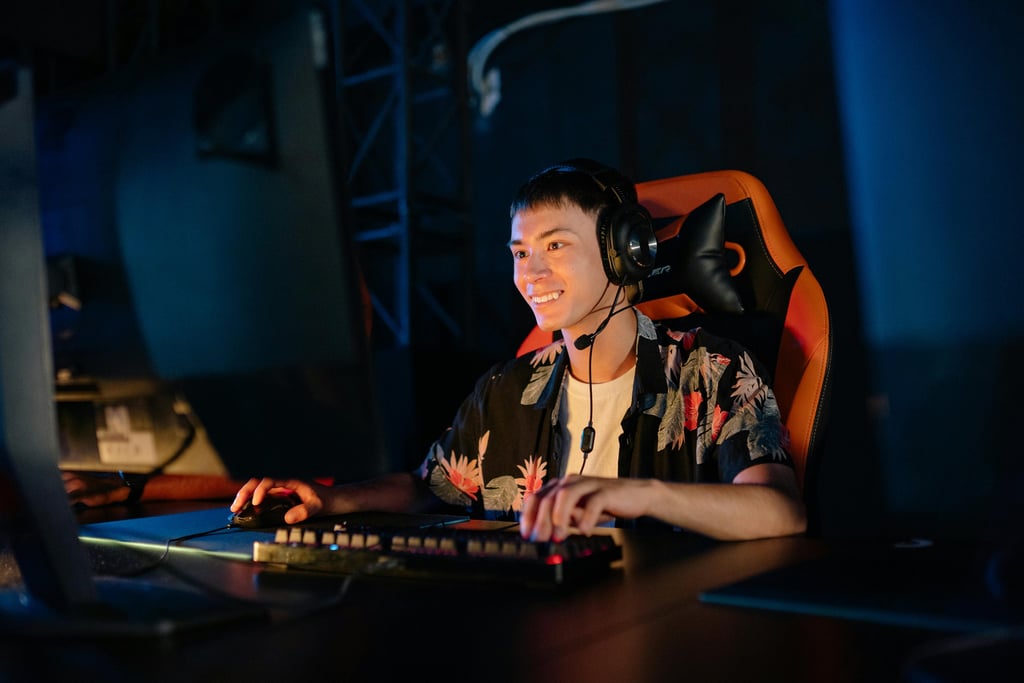
Introduction
You've thought about it.
You follow your streaming idol and believe, I can do the same. Perhaps you already spend hours on playing. Perhaps the friends say that you are funny. Or you are simply a lover of games and want to pass that vigor.
That’s how most people start.
Streaming appears to be tricky initially. Wires. Settings. Bitrate. Overlays. It feels technical. As a matter of fact, it is a collective of minor steps. It is not very difficult once you know those steps.
This guide walks you through everything. Hardware. Software. Going live. Growing an audience. Mistakes to avoid. I’ll keep it practical. No fluff. Just what actually matters.
Let’s start from zero.
Choosing Your Platform
The two big options right now are Twitch and Kick.
Twitch is the giant. Millions of daily viewers. Massive categories. Established culture. The upside is exposure. The downside is competition.
Kick is newer. Smaller audience. Fewer restrictions. A growing community that feels less crowded.
Sign up with any platform of choice. Explore the dashboard. Click around. Watch other small streamers, not just the huge ones. That shows you what realistic early growth looks like.
Pick one platform first. Learn it well. You can expand later.
What You Actually Need to Start
You don’t need a studio. You need a clean, functional setup.
Here’s what matters.
Your Gaming Device
PC Streaming
If you’re gaming on a PC, your computer needs to handle two things at once:
1. Running the game
2. Encoding the stream
You don’t need a monster machine. A good mid-range gaming computer from the past few years will do the trick. If your game is already maxing out your computer at 100%, streaming will be a problem. In that case, lower game settings first.
Console Streaming
The console that will be used will need a capture card, including the PlayStation 5 or the Xbox Series X.
An apt option is Elgato HD60 S. It transmits your video on your console to your PC so that you can stream it accordingly.
Yes, it adds cost. But it gives you flexibility and better control over quality.
Microphone: Audio Matters More Than Video
Viewers tolerate average video. They leave for bad audio.
A USB mic is the easiest starting point. The Blue Yeti is popular for a reason. Plug it in. Select it in your software. Done.
It can pick up room noise, though. If your space echoes or has background sounds, you’ll notice it.
If you want cleaner audio, an XLR mic like the Audio-Technica AT2020 sounds great. But it requires an audio interface. That means more cost and more setup.
When I started, I underestimated audio. I fixed it later. If I could go back, I’d prioritize sound from day one.
Webcam: Optional, But Powerful
A webcam helps viewers connect with you. They see reactions. Expressions. Real emotion.
The Logitech C920 is a reliable 1080p option. It’s simple and dependable.
If you’re shy, you can stream without a webcam at first. Many people do. But adding one usually improves engagement.
Lighting and Background
Lighting changes everything.
Even a basic ring light placed in front of you improves image quality. Natural light works too, as long as it’s consistent.
Look behind you. Clean it up. Remove distractions. A simple wall, LED strips, or a few posters look better than clutter.
Small adjustments make your stream feel intentional.
Streaming Software
Your software sends everything to the platform.
The most widely used option is OBS Studio. It’s free. Powerful. Flexible. Many large creators still use it.
Streamlabs Desktop is another alternative that is easy to use. It contains set in overlays and warnings. It's easier at first. It can consume higher resources of the system.
Here’s how it works in simple terms:
1. You create scenes
2. You add sources (game, mic, webcam)
3. You set bitrate and resolution
4. The software encodes and sends your stream
Start at 1080p, 30 FPS. Keep it stable. You can upgrade quality later.
Setting Up Your Stream Step by Step
Now let’s build it.
1. Connect Your Account
Log into Twitch or Kick inside your streaming software. This links your channel directly.
2. Create Scenes
Scenes are layouts you switch between.
Common ones:
Gameplay – Game full screen, webcam in corner
Starting Soon – Countdown screen before you begin
Be Right Back – For short breaks
Ending Screen – Closing message
Switching scenes makes your stream feel organized.
3. Add Sources
Inside your gameplay scene:
1. Add Game Capture for your game
2. Add Video Capture Device for your webcam
3. Add your microphone under audio
Resize and position your webcam carefully. Avoid covering important game elements like maps or health bars.
4. Overlays and Alerts
Overlays show your name, recent followers, or goals.
Alerts pop up when someone follows or subscribes.
Services like Streamlabs and StreamElements make setup simple. You copy a link into OBS. That’s it.
Keep overlays clean. Too many animations look chaotic.
5. Balance Your Audio
Open your software’s audio mixer.
Speak normally. Watch the meter. It should stay in the green or low yellow range. Not red.
Then test game audio. It should support your voice, not overpower it.
Do a private test stream. Always.
Going Live for the First Time
This part feels scary. It shouldn’t.
Set a clear title. For example:
“Chill Valorant Ranked With Chat”
Choose the correct game category.
Click Start Streaming.
That’s it.
When someone joins, greet them. Even if it’s just one viewer. Early engagement sets the tone.
It is consistency that is important and not length. Choose the schedule that you can stick to. Three times a week, two hours is even better than random marathon streams.
Engaging With Your Audience
Streaming isn’t just gameplay. It’s conversation.
Talk even when chat is quiet. Describe what you’re doing. Share thoughts. React out loud.
Say usernames when replying. People stay longer when they feel acknowledged.
Don’t force a personality. If you’re calm, be calm. If you’re competitive, lean into it. Authentic energy attracts the right audience.
Growth is slow at first. That’s normal. Most channels begin with zero to three viewers. Mine did too.
Keep showing up.
Common Mistakes to Avoid
Skipping test streams
Always test first. Audio. Video. Alerts.
Ignoring sound quality
Bad audio drives viewers away fast.
Streaming exhausted
Burnout happens quickly. Take breaks. Drink water.
Copying big streamers too closely
Inspiration is fine. Cloning isn’t.
Chasing numbers early
Focus on improving your content. Numbers follow later.
Advanced Growth Tips
Once you’re consistent, level up.
Collaborate with other small streamers. Shared audiences help both sides.
Clip funny or impressive moments. Post them on short-form platforms. Discovery often happens outside Twitch or Kick.
Study analytics. See when viewers drop off. Notice which games perform better.
Use royalty-free music. Avoid copyright issues. It saves headaches later.
Frequently Asked Questions
1. What is the minimum equipment needed?
A PC or console and streaming software. That’s enough to begin.
2. Can I stream on both Twitch and Kick?
Yes. Some tools allow multistreaming. Check each platform’s policies first.
3. What internet speed do I need?
For 720p streaming, aim for at least 5 Mbps upload speed. Higher quality needs more.
4. Do PC gamers need a capture card?
Usually no. Console streamers typically do.
5. How long should my first stream be?
Start with one to two hours. Stay energetic. End before you feel drained.
Final Thoughts
Streaming feels overwhelming before you begin.
After your first stream, it feels possible.
After your tenth, it feels normal.
Don’t aim for perfection. Aim for progress. Improve something small each session. Audio. Lighting. Interaction.
Most important, enjoy it. Viewers sense when you’re having fun.
Set up your scene. Press start. Learn as you go.
That’s how every streamer begins.
Sources
You May Also Like
10 Best Gaming Chairs for Long Sessions: Comfort & Performance
Best Ergonomic Gaming Desks for Long Sessions: Performance, Comfort & Setup
Best Mechanical Keyboards Under $70 : Top Budget Picks for Work & Gaming
Quick Links
© 2025 Gadget Nexus Pro. All rights reserved